.svg)
.svg)

Wie erstelle und konfiguriere ich einen neuen Button?
Konfiguriere Jira-Schaltflächen mit benutzerdefiniertem Design, Anzeigeregeln, Aktionen, Vorlagen und Verhaltensweisen.
1. Wie erstelle ich einen neuen Button mit dem App Configuration Panel?
Erforderliche Jira-Rolle: Jira Software Administrator
- Klicken Sie auf Einstellungen > Apps
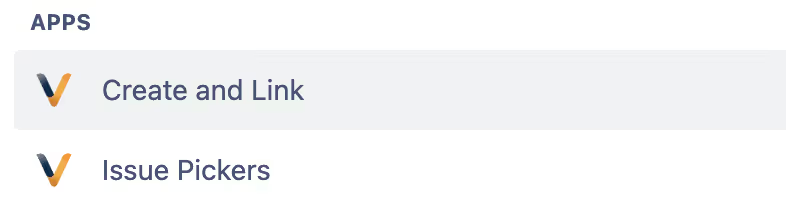
- Navigiere zur App „Create and Link“
Klicken Sie auf den folgenden Button, um einen neuen Issue Picker zu erstellen
2. Wie konfiguriere ich den Button - Look & Feel?
Erforderliche Jira-Rolle: Jira Software Administrator
Während der Erstellungsphase des Buttons sollten die folgenden Look & Feel-Parameter vervollständigt werden:

| Parameter | Syntax | Description |
|---|---|---|
| Label |
Text Mandatory |
Provide a name for your Button. |
| Description |
Text Optional |
Describe your Button. |
| Enabled |
Checkbox Default: Yes |
Toggle the Button between enabled, usable by Jira users, and disabled, temporarily removed from view screens. |
| Text Color |
Hex Color Codes Default: #43536e |
Use the Color picker to configure the Button Text Color.

|
| Background Color |
Hex Color Codes Default: #f5f6f7 |
Use the Color picker to configure the Button Background Color. |
| Highlight Text Color |
Hex Color Codes Default: #43536e |
Use the Color picker to configure the Button Highlight Text Color. |
| Highlight Background Color |
Hex Color Codes Default: #f5f6f7 |
Use the Color picker to configure the Button Highlight Background Color. |
| Round |
Checkbox Default: No |
Toggle between round and normal Buttons. |
| Icon | Default: No Icon |
On the left side of the Button Text, you can add an Icon.
The App provides the following Icons: 
If you need another Icon, please check this page and let us know which Icon we should add:
https://atlassian.design/components/icon/icon-explorer |
3. Wie konfiguriere ich die Button-Display-Einstellungen?
Erforderliche Jira-Rolle: Jira Software Administrator
Bitte wechseln Sie zum zweiten Tab „Anzeigeeinstellungen“, um festzulegen, wo und wann der Button angezeigt werden soll:

4. Wie konfiguriere ich die Button-Aktionseinstellungen?
Erforderliche Jira-Rolle: Jira Software Administrator
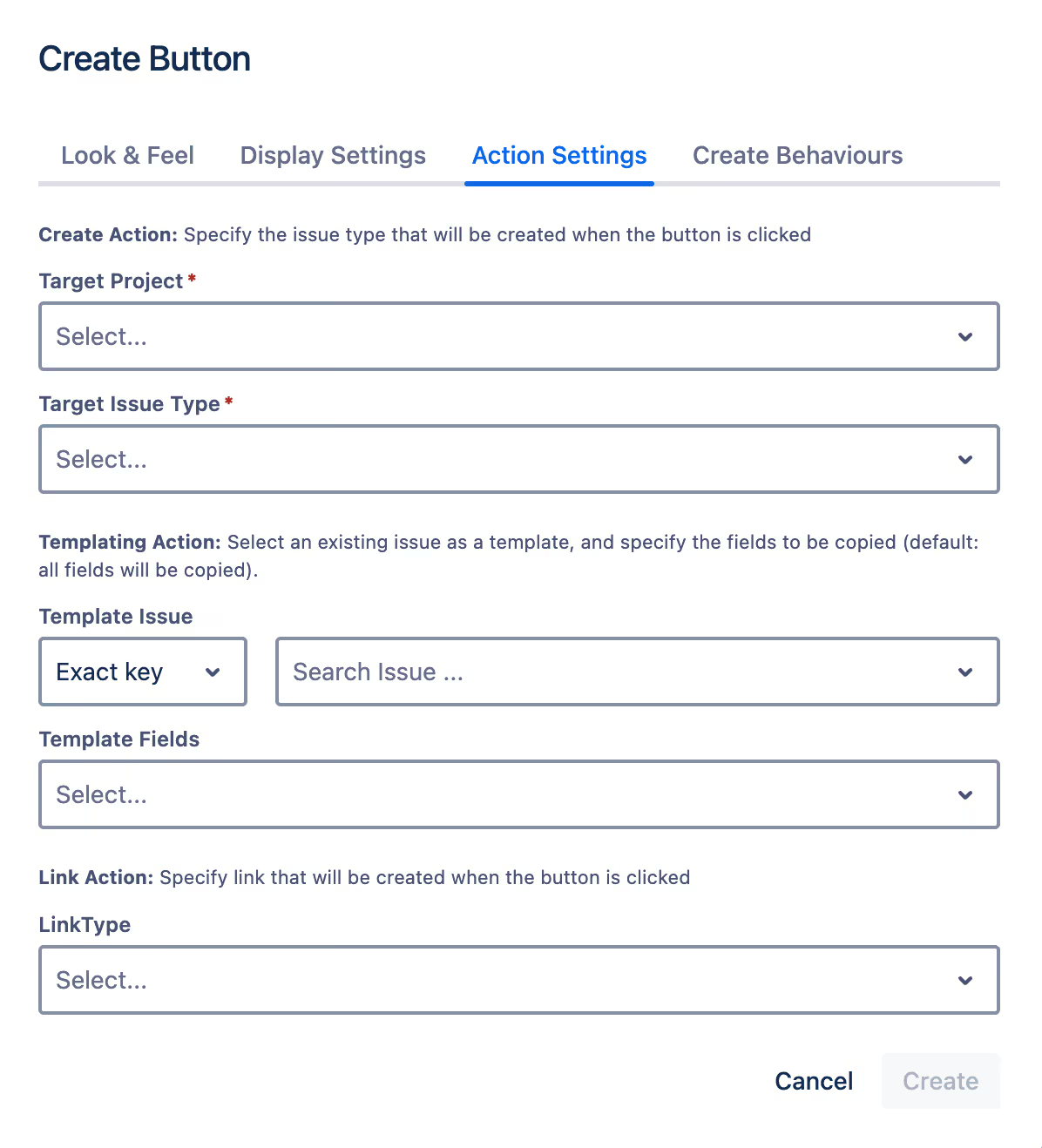
Bitte wechseln Sie zum zweiten Tab „Aktionseinstellungen“, um die Button-Konfiguration abzuschließen, und konfigurieren Sie, welcher Problemtyp erstellt und verknüpft werden soll:
4. Wie konfiguriere ich den Button — Create Behaviours?
Erforderliche Jira-Rolle: Jira Software Administrator
Bitte wechseln Sie zum zweiten Tab „Create Behaviours“, um die Button-Konfiguration abzuschließen, wenn Sie Behaviors zum Create-Bildschirm hinzufügen möchten und lesen Sie die Dokumentation hier:

Integrate your CRM with other tools
Venenatis sollicitudin posuere elit consequat et enim. Neque tortor amet dictum tempor. Leo facilisis aliquet viverra scelerisque eleifend viverra est. At massa erat vel amet enim laoreet dictum pellentesque. Urna cursus quam pulvinar tellus. Duis fermentum nibh volutpat morbi. Et ac sed ultricies ut nunc.
How to connect your integrations to your CRM platform?
Et urna ac et maecenas fusce amet. Nibh nec commodo massa sed. Tincidunt porttitor in pharetra egestas sit neque ac lacus. Amet a nunc et cum. Odio at volutpat volutpat in leo eget ipsum diam elementum. Erat magna arcu orci.
- Morbi fringilla molestie magna sed dictum. Praesent pharetra.
- Cras mi purus, viverra vitae felis sit amet, tincidunt fringilla lorem.
- Non mattis urna ex nec sem. Donec varius diam et suscipit.
- Quisque euismod posuere lacus sit amet volutpat praesent.
Quis faucibus massa sit egestas. Sit fermentum est ac pulvinar et sagittis sed sit ut. Quis faucibus aenean nibh vestibulum enim mi sit. Sollicitudin ultrices ultrices in ipsum urna fringilla massa leo. Sapien ultricies vitae rhoncus molestie purus. Urna urna dolor euismod porttitor et. Magna adipiscing dictum et adipiscing.

Quis faucibus massa sit egestas. Sit fermentum est ac pulvinar et sagittis sed sit ut. Quis faucibus aenean nibh vestibulum enim mi sit. Sollicitudin ultrices ultrices in ipsum urna fringilla massa leo. Sapien ultricies vitae rhoncus molestie purus.
Infotech is the next-gen CRM platform designed for modern sales teams
Cursus curabitur euismod vel fermentum sapien non dolor odio vel. Tortor lectus mauris in praesent a tincidunt nam. In aenean odio aliquet pretium viverra elit quis magna. Eget ut risus posuere velit purus nisi nec sollicitudin tellus enim.
“Sed id mi eget urna facilisis pharetra. Nunc viverra est at magna maximus consectetur. Sed nec maximus augue. Aliquam commodo sem eu.”
Cursus curabitur euismod vel fermentum sapien non dolor odio vel. Tortor lectus mauris in praesent a tincidunt nam. In aenean odio aliquet pretium viverra elit quis magna. Eget ut risus posuere velit purus nisi nec sollicitudin. Tellus enim interdum neque sit vestibulum lacus. Nam pulvinar a lectus justo aliquet.
Why using the right CRM can make your team close more sales?
Sed non quis tellus velit orci. Quam sed mauris elementum tempor viverra. Luctus semper risus ipsum id diam praesent. Pretium eget mauris ultrices curabitur sed sem amet. Erat nulla habitant in mattis massa mi adipiscing.
- Morbi fringilla molestie magna sed dictum. Praesent pharetra.
- Cras mi purus, viverra vitae felis sit amet, tincidunt fringilla lorem.
- Non mattis urna ex nec sem. Donec varius diam et suscipit.
- Quisque euismod posuere lacus sit amet volutpat praesent.
What other features would you like to see in our product?
Sed non quis tellus velit orci. Quam sed mauris elementum tempor viverra. Luctus semper risus ipsum id diam praesent. Pretium eget mauris ultrices curabitur sed sem amet. Erat nulla habitant in mattis massa mi adipiscing ullamcorper condimentum. Erat quisque integer tincidunt ac amet.