






.svg)

How to add and maintain "Create Behaviours"?
Configure Create Behaviours using JSON to auto-fill, hide, or display fields in Jira issue creation.
1- GUI Handling
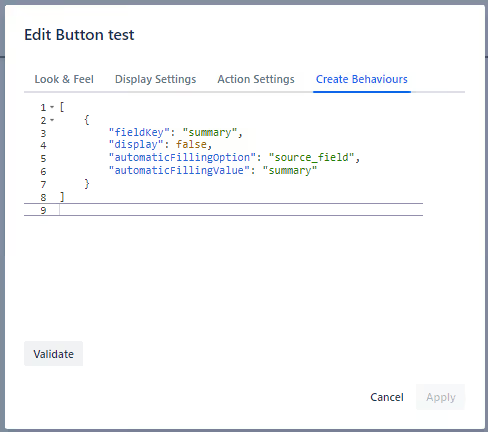
Create Behaviours: This is an array of JSON objects, where each object represents a behavior action with four attributes.
You must verify the JSON according to JSON Schema in order to store behaviors.
2- JSON Schema
{
  "$id": "http://json-schema.org/json/schema",
  "type": "array",
  "items": {
    "type": "object",
    "properties": {
      "fieldKey": {
        "type": "string"
      },
      "display": {
        "type": "boolean"
      },
      "automaticFillingOption": {
        "enum": ["constant_string", "source_field", "target_field", "source_issue_key"]
      },
      "automaticFillingValue": {
        "type": "string"
      }
    },
    "required": [
      "fieldKey",
      "display",
      "automaticFillingOption",
      "automaticFillingValue"
    ]
  }
}
Description
| Property | Type | Description |
|---|---|---|
| fieldKey | string (field key) |
Enter here the field ID. It can be a system field or custom field.
The custom field ID must always start with customfield_.
You can find the field ID by following the steps on this page: Get custom field IDs for Jira and Jira Service Management | Jira | Atlassian Documentation. I recommend option 2 using the API. |
| display | boolean |
If the value is false, then the field will be hidden.
Mandatory fields must be populated, otherwise they will still be shown.
Supported fields: summary description assignee reporter components fix versions labels priority checkboxes date picker date time picker multi select multi user picker number parent radio buttons single select text field url user picker |
| automaticFillingOption | enum ["constant_string", "source_field", "target_field", "source_issue_key"] |
constant_string: Choose this option to populate the field with a fixed text.
source_field: Choose this option when you want to populate the field with a value of a field in the source issue. target_field: Choose this option when you want to populate the field with a value of another field in the “issue create modal” in real time. source_issue_key: Choose this option when you want to populate the field with the source issue’s issue key. Coming Soon: no_action: Planned. No pre-fill function. |
| automaticFillingValue | string (field key, value, or empty) |
If you choose source_field or target_field in automaticFillingOption, you have to enter the field ID in this property.
If you choose constant_string, you have to enter the fixed text in this property.
If you choose source_issue_key or no_action, leave this property empty.
|
3- Eligible Behaviours
3.1 From Field of Source Issue to Field in Target Issue
The target custom field must be the same custom field ID as the source.
possible target field
same field type (source = target)
★ Custom field: the target must have the same custom field ID as the source.
3.2 From Field of Target Issue to Field in Target Issue
possible target field
same field type (source = target)
No target-to-target mapping: description, components, fixVersions, duedate, environment, checkboxes, multi select, radio buttons, single select.
4- Examples
- In this example the summary field will be populate with the value of summary field of source issue:
| Example | Use Case | JSON |
|---|---|---|
| Populate summary from source issue summary | The summary field will be populated with the value of the summary field of the source issue. |
|
| Populate and hide summary field | The summary field will be populated with the value of the source issue summary, and the field will be hidden after population. |
|
| Populate custom text field from source issue summary |
A text field custom field will be populated with the value of the summary field of the source issue.
In this example, customfield_10337 is assumed to be a text field.
|
|
| Populate summary and description from source issue summary | The summary and description fields will both be populated with the value of the summary field of the source issue. |
|
| Populate custom text field from target issue summary |
A text field custom field will be populated with the value of the summary field of the target issue.
When the summary value changes, the text field value changes in real time.
In this example, customfield_10337 is assumed to be a text field.
|
|
| Populate summary with source issue key | The summary field will be populated with the key of the source issue. |
|
| Populate summary with fixed text |
The summary field will be populated with the fixed text New Summary.
|
|