.svg)
.svg)

How to configure and manage database connections?
Configure database connections for VIP.LEAN ETL, supported drivers, URLs, credentials and pool size.
1 – Supported database versions
The following Database versions are supported
- Postgres based on driver version 42.7.1: support of PostgreSQL Server 8.2 till 16
- Oracle based in driver version 23.3.0.23.09: Oracle DB Server 23c, 21c, 19c, 18c, and 12.2
- SQL-Server / AzureSQL based on driver version 12.4.2.jre8:
2 – Database connections
Database connections are considered as a pool or resources, which can be used for several purposes. This core functionality will be installed with every VIP.LEAN app requiring read and /or write access to the databases.
Under the menu point: Manage apps > VIP.LEAN ETL FOR REPORTING > Database Connections you can create, edit, and delete the database connections:

3 – Add new database connection
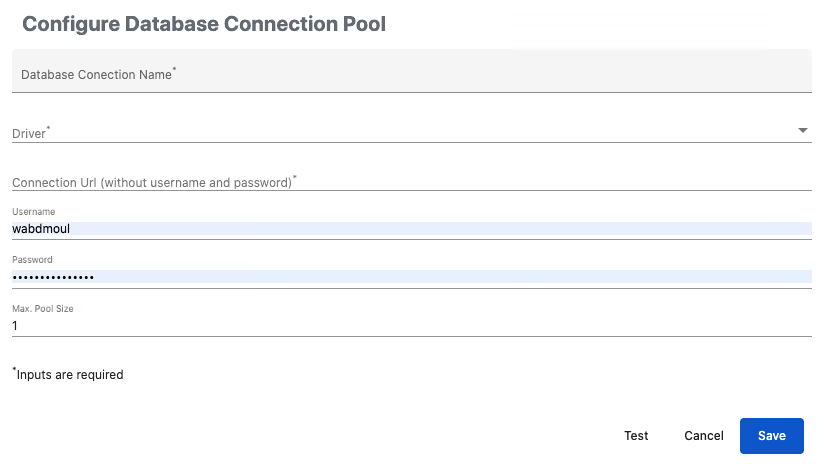
Please test your connection before you save the connection. In case you receive an error message, please contact your DB admin to analyze the root cause (Network connection error, User and password are wrong, Connection URL is wrong …).
Once the connection is saved, it can be used by the app for further actions.
Please note: In the case where you use the DB connection actively for read or write actions, any subsequent change to the database parameters could lead to major errors. If you want to migrate your ETL for Reporting App to another ETL connection, please create first a second DB connection and migrate the Data ETL Rules to this connection.
Integrate your CRM with other tools
Venenatis sollicitudin posuere elit consequat et enim. Neque tortor amet dictum tempor. Leo facilisis aliquet viverra scelerisque eleifend viverra est. At massa erat vel amet enim laoreet dictum pellentesque. Urna cursus quam pulvinar tellus. Duis fermentum nibh volutpat morbi. Et ac sed ultricies ut nunc.
How to connect your integrations to your CRM platform?
Et urna ac et maecenas fusce amet. Nibh nec commodo massa sed. Tincidunt porttitor in pharetra egestas sit neque ac lacus. Amet a nunc et cum. Odio at volutpat volutpat in leo eget ipsum diam elementum. Erat magna arcu orci.
- Morbi fringilla molestie magna sed dictum. Praesent pharetra.
- Cras mi purus, viverra vitae felis sit amet, tincidunt fringilla lorem.
- Non mattis urna ex nec sem. Donec varius diam et suscipit.
- Quisque euismod posuere lacus sit amet volutpat praesent.
Quis faucibus massa sit egestas. Sit fermentum est ac pulvinar et sagittis sed sit ut. Quis faucibus aenean nibh vestibulum enim mi sit. Sollicitudin ultrices ultrices in ipsum urna fringilla massa leo. Sapien ultricies vitae rhoncus molestie purus. Urna urna dolor euismod porttitor et. Magna adipiscing dictum et adipiscing.

Quis faucibus massa sit egestas. Sit fermentum est ac pulvinar et sagittis sed sit ut. Quis faucibus aenean nibh vestibulum enim mi sit. Sollicitudin ultrices ultrices in ipsum urna fringilla massa leo. Sapien ultricies vitae rhoncus molestie purus.
Infotech is the next-gen CRM platform designed for modern sales teams
Cursus curabitur euismod vel fermentum sapien non dolor odio vel. Tortor lectus mauris in praesent a tincidunt nam. In aenean odio aliquet pretium viverra elit quis magna. Eget ut risus posuere velit purus nisi nec sollicitudin tellus enim.
“Sed id mi eget urna facilisis pharetra. Nunc viverra est at magna maximus consectetur. Sed nec maximus augue. Aliquam commodo sem eu.”
Cursus curabitur euismod vel fermentum sapien non dolor odio vel. Tortor lectus mauris in praesent a tincidunt nam. In aenean odio aliquet pretium viverra elit quis magna. Eget ut risus posuere velit purus nisi nec sollicitudin. Tellus enim interdum neque sit vestibulum lacus. Nam pulvinar a lectus justo aliquet.
Why using the right CRM can make your team close more sales?
Sed non quis tellus velit orci. Quam sed mauris elementum tempor viverra. Luctus semper risus ipsum id diam praesent. Pretium eget mauris ultrices curabitur sed sem amet. Erat nulla habitant in mattis massa mi adipiscing.
- Morbi fringilla molestie magna sed dictum. Praesent pharetra.
- Cras mi purus, viverra vitae felis sit amet, tincidunt fringilla lorem.
- Non mattis urna ex nec sem. Donec varius diam et suscipit.
- Quisque euismod posuere lacus sit amet volutpat praesent.
What other features would you like to see in our product?
Sed non quis tellus velit orci. Quam sed mauris elementum tempor viverra. Luctus semper risus ipsum id diam praesent. Pretium eget mauris ultrices curabitur sed sem amet. Erat nulla habitant in mattis massa mi adipiscing ullamcorper condimentum. Erat quisque integer tincidunt ac amet.