Supported rule changes
The following change of rules are supported by the app:
| Change in the Data ETL rule |
How does the app handle the change? |
| Add new fields to the rule |
Additional columns will be added to the existing table. |
| Remove fields |
The corresponding columns in the table will not be deleted.
New Jira changes to the fields will not be reported.
|
| Change the target database or schema |
The app takes over the new database connection and checks the status:
- A new table will be created and used for the reporting, or
- An existing VIP.LEAN table will be reused by adding the missing columns.
|
| Change the name of the table |
The app takes over the new table name and checks the status:
- A new table will be created and used for the reporting, or
- An existing VIP.LEAN table will be reused by adding the missing columns.
|
| Disable the rule |
Reporting of Jira changes will be stopped. |
| Re-activate the rule |
Reporting of subsequent Jira changes will continue.
Please use a bulk update of previous issue types if you want to add them to the table.
|
| Delete configured DB Connection, used in active rule |
This is not supported and will lead to reporting errors.
|
How to edit the Data ETL rule?
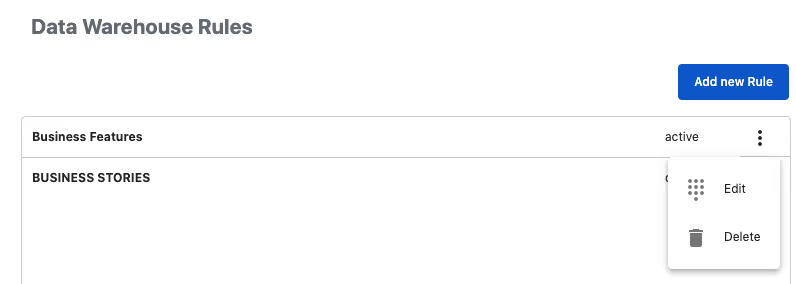
To edit an existing rule please select the rule and click on “Edit”
To disable or reactivate the rule use simply this button in the Edit dialog
All other fields can be changed similarly to the creation phase.







.svg)