1 How-To Video
2 Create a new “Linked Issue Panel”
- Click as Admin “Manage apps”
- Go to the VIP.LEAN TOOLS section
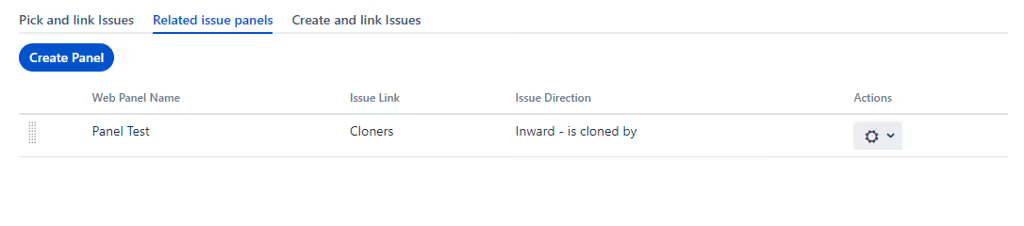
- Click on “Related Issues Panels”
- Click on “Create Panel”
3 Configure the “Linked Issue Panel”
| Field |
Type |
Description |
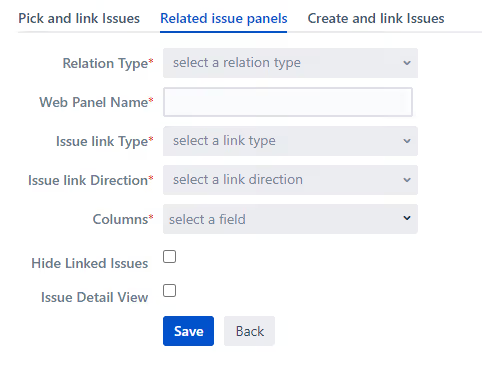
| Relation Type |
Select |
Please select Issue Links.
Planned: Sub-Tasks
|
| Web Panel Name |
String |
Name of the panel which will be displayed as title in the issue details.
|
Issue Link Type
Issue Link Direction
|
Select List |
The admin can select the link type and direction to define which issues
should be displayed in the panel.
|
| Columns |
Select List |
The panel is displayed as a table. The admin can select up to 10 columns,
which are displayed in the exact sequence as they were entered.
|
| Hide Linked Issues |
Checkbox |
When this value is checked, the standard linked issues section is hidden.
|
| Issue Detail View |
Checkbox |
When this value is checked, the related issue panel will also be displayed
in detail views, such as filters and boards.
|
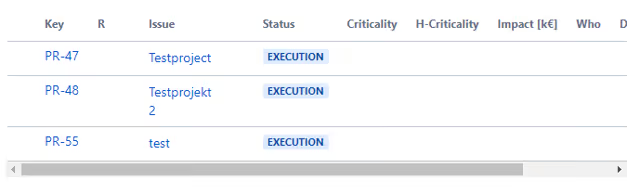
4 How the “Linked Issue Panel” is displayed
The configured panel is displayed immediately after the configuration:







.svg)