1 How-To Video
2 How to access the Custom Field Configuration ?
There are 2 options to configure the Custom Fields
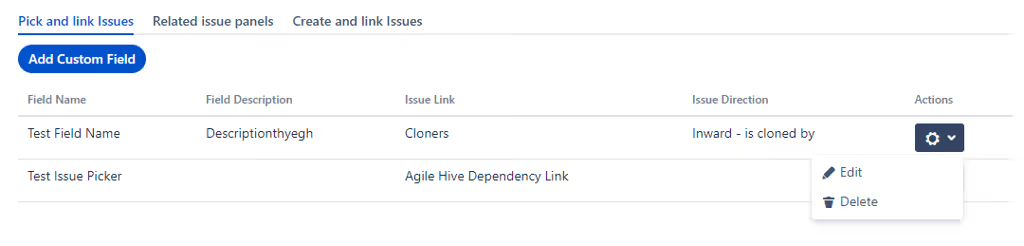
- Go to Manage Apps, Click on VIP.LEAN TOOLS > Pick and Link Issue. Select the Custom Field and Click on Edit
- Go to Issues > Fields > Custom Fields. Select the Custom Field and Click on Configure and then you click on the Link to the configuration Panel
3 How to configure the Single Issue Picker and Linker ?
| Field |
Type |
Description |
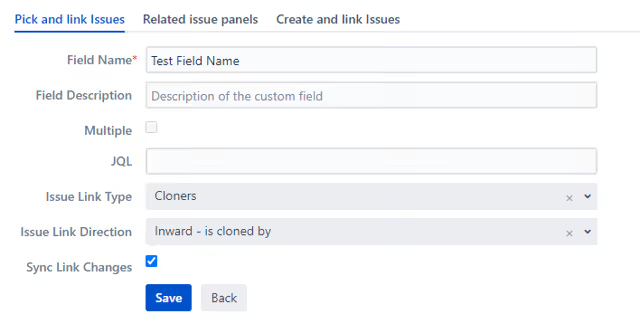
| Field Name |
String |
The name of the custom field to be searched and used in the screen configuration.
|
| Field Description |
String |
Additional description to be displayed for the end users.
|
| Multiple |
Checkbox |
Automatically set and read only when the admin creates
Single Issue Picker and Linker or
Multiple Issue(s) Picker and Linker.
Alternatively, this can be set by the admin when the custom field is created from the
Pick and Link Issue app configuration menu.
- Checked: Many issues can be picked and linked.
- Unchecked: Only one issue can be picked and linked.
|
| JQL |
String with Jira JQL Syntax |
Any JQL to define the issues to be picked and linked.
Empty: All issues will be displayed.
|
Issue Link Type
Issue Link Direction
|
Select List |
The admin can select the link type and direction to be created automatically
when issues are picked in the custom field.
Empty: No links are created.
|
| Sync Link Changes |
Checkbox |
We recommend hiding the configured link type in the dialog
Issue > More > Links or in the field
Linked Issues using link schemes.
This feature is planned in the next version of this app.
If the end user uses the configured link, this option allows the custom field
to be synced automatically after any link change.
|







.svg)