Create and link Jira issues with VIP.LEAN buttons, configure fields, links, and end user actions.
1 How-To Video
2 Installation Guide
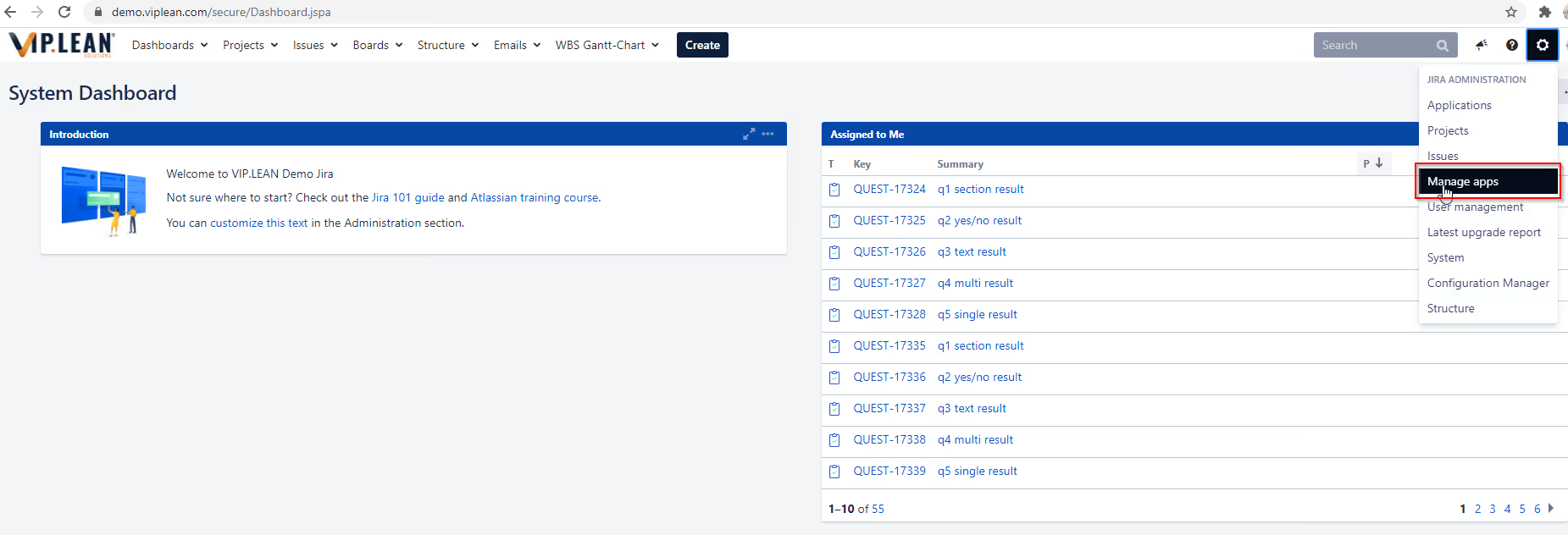
2.1 Navigate to “Manage Apps”
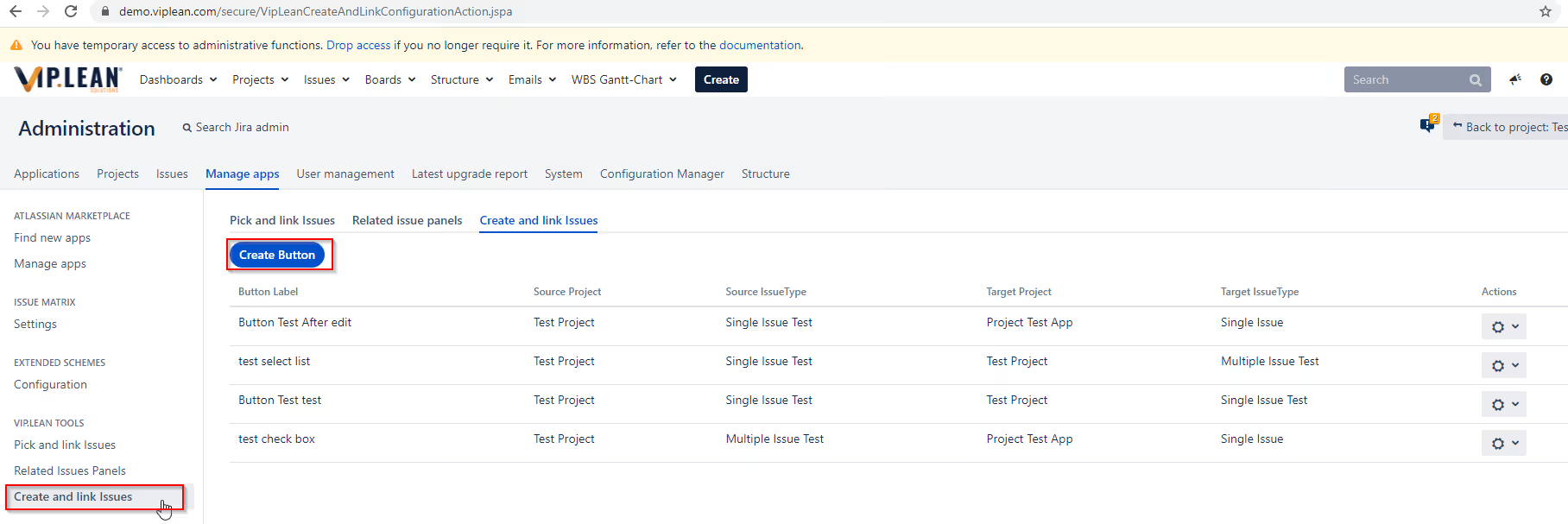
2.2 Navigate to “Create and link Issues” and to create a new button click on “Create Button”
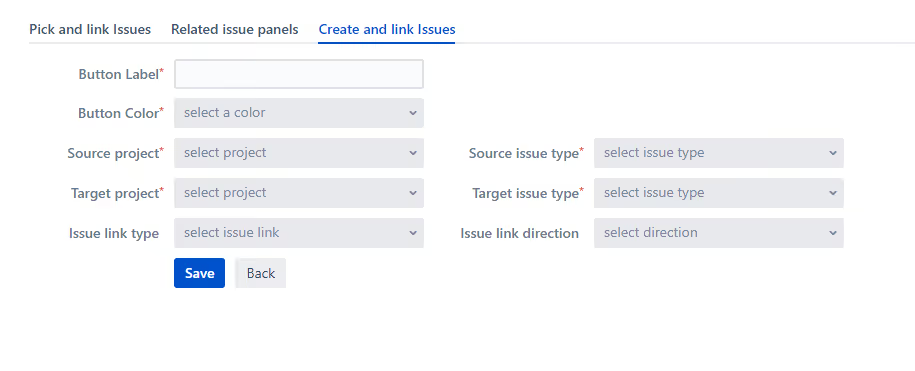
2.3 Configure the button
Field
Type
Description
Button Label
String
The name of the button to be displayed and used in the view screen.
Button Color
Select List
The admin can choose the color of the button shown in the issue view.
Source Project
Select List
The source project is where the button should be displayed.
Source Issue Type
Select List
The button should be displayed in issues with the selected issue type.
Target Project
Select List
The target project of the new issue to be created.
Target Issue Type
Select List
The issue type of the issue to be created.
Issue Link Type
Select List
The admin can select the link type and direction to define which link should
be created between the source and the created issues.
Issue Link Direction
Select List
The admin can select the link direction to define how the source issue and
created issue should be linked.
i
You can select sub-tasks in the Target issue type field only if the source and target projects are the same.
i
You can select sub-tasks in the Target issue type field only if the source and target projects are the same.
2.4 Configure the fields of the create screen
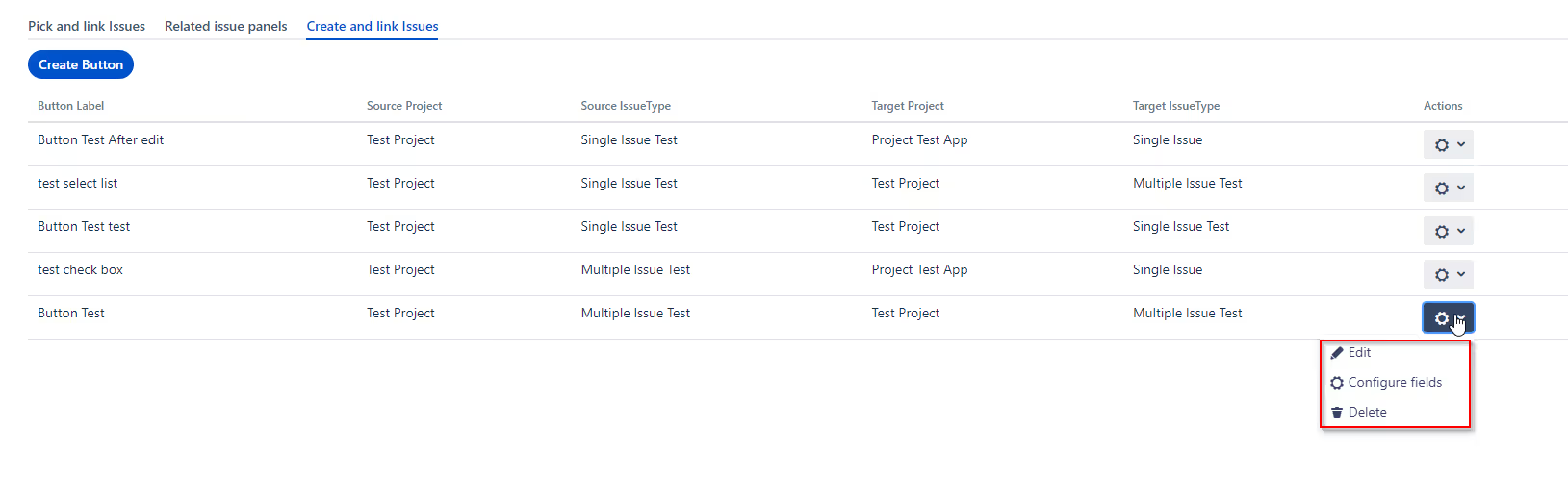
In the list of buttons, please select “Configure fields” to start the configuration of create screen fields:
A configuration screen will appear with all fields, which are part of the create screen of your target issue type:
Field Name
Display
Automatic Filling Option
Automatic Filling Value
The list of fields in the create screen of the target project and target issue type.
Checkbox
If value = on: the field will be displayed in the create screen.
If value = off: the field will be hidden in the create screen and the admin can fill it with an automatic filling option. This is necessary if the field is required.
Constant String
Source Field
Target Field
Source Issue Key
Constant String: Input text. The admin can fill the custom field with a string.
Source Field: List of source fields with eligible types. The admin can select one source field to be copied into the target field automatically.
Target Field: List of target fields with eligible types. The admin can select one target field to be copied into the selected target field automatically.
Source Issue Key: The value is the key of the source issue.
The fields shown in this list (Configure Fields) are the same as in the create screen of the target project.
The admin can hide any field in this list and configure it.
System field “Versions” and “Components” are visible only if source and target project are the same.
The required fields have only three options (String, source field and source issue key).
The target field > target field filling is executed by the App immediately after the issue creation.
To consider:
For the selected source fields, only eligible fields should be selected for automated filling (They could be source or target fields):
Source Field
Eligible filled in Fields
Text
ALL
Date
All system or custom fields of type Date
Date Time
All system or custom fields of type Date Time
Labels
Labels
Radio
Radio
Checkbox
Checkbox
Issue Picker
Issue Key
VIP.LEAN Issue Picker and Linker
Select List
Select List. Options must be the same.
User Fields
User Picker
User Fields
i
Only the first five create and link buttons will be displayed. The others will be available under the Create and link drop-down menu.
2.5 End users can start using the create and link button
Once the button has been configured, it will be displayed in the source issue type. A click on this button start a pop-up create screen.
i
Only the first five create and link buttons will be displayed. The others will be available under the Create and link drop-down menu.
Target issue type and link are created automaticly:







.svg)


.avif)


