







How to Filter by the Current Work Item with Dynamic JQL
Filter Issue Pickers by values of the current work item with Dynamic JQL: syntax, fallbacks, which fields can be compared, which values each screen knows, and the live preview.
1. What Dynamic JQL Does
Required Jira Role: Jira Administrator
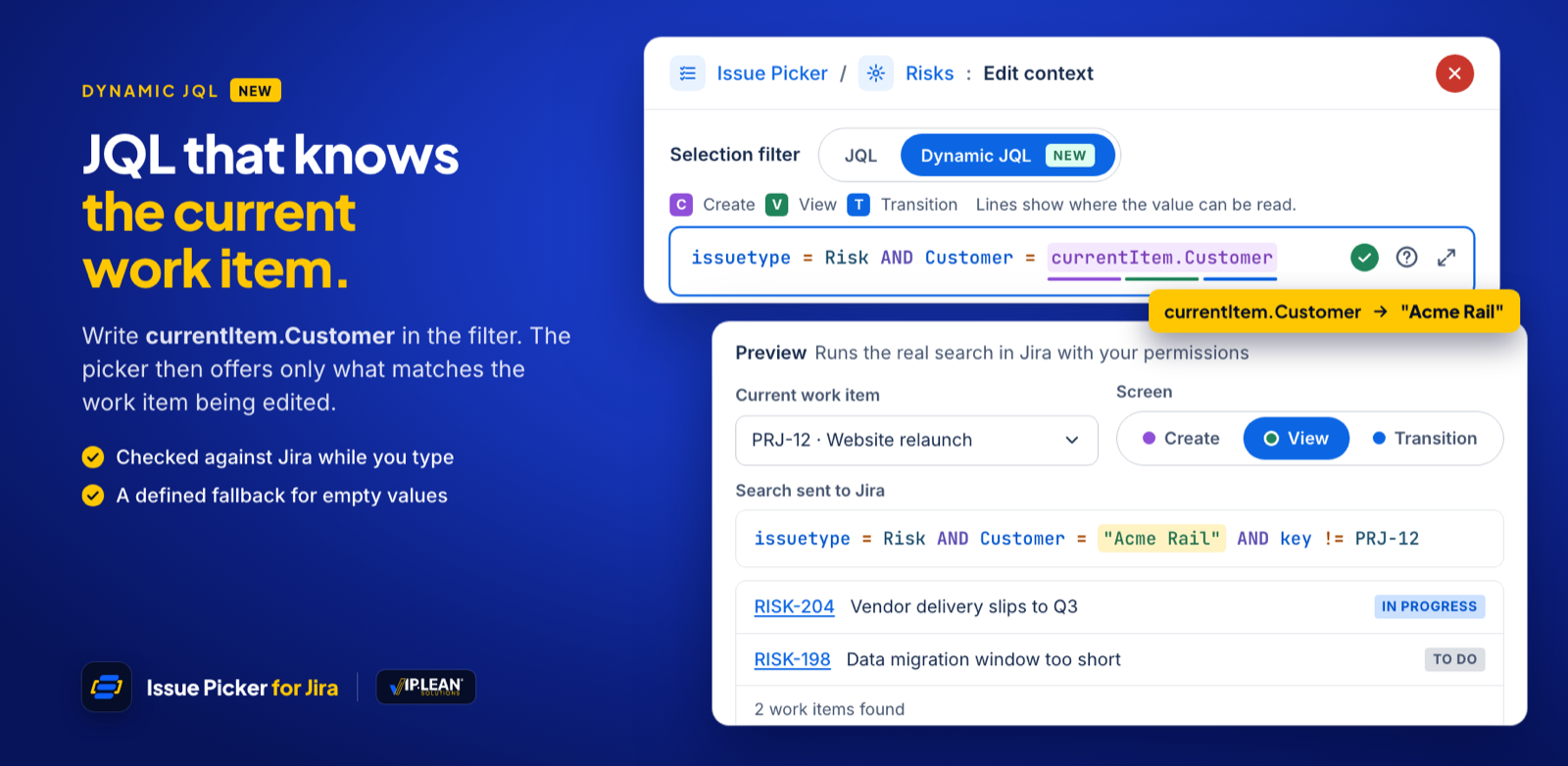
A normal JQL filter offers the same work items everywhere. Dynamic JQL adds values of the work item that is being filled, the current work item. You write them as currentItem.<field> on the right side of a condition:
Customer = currentItem.Customer AND statusCategory != Done
On a request for the customer Acme Rail, the picker then offers only open work items of Acme Rail.
Dynamic JQL is set per context, because it depends on the spaces and screens a context applies to. The defaults of a picker use plain JQL.
2. Turn On Dynamic JQL in a Context
Required Jira Role: Jira Administrator
- In the list of Issue Pickers, click Contexts in the row of the picker, then + Context, or edit an existing context.
- In the section Selection, choose Dynamic JQL under Selection filter.
- Write the filter. Suggestions open while you type or with Ctrl+Space.
- Check the result in the preview and click Create or Apply.
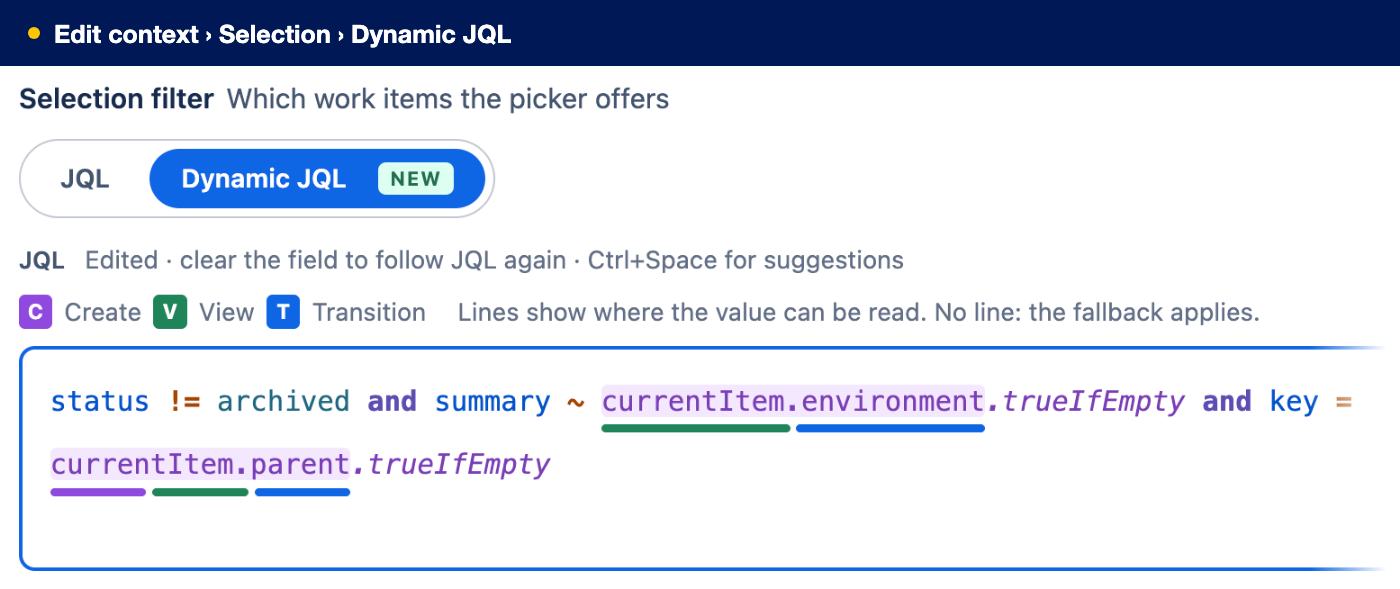
When you switch to Dynamic JQL, your JQL settings are taken over: Restricted to current space becomes project = currentItem.project, and Add subtasks of the current work item becomes OR parent = currentItem.key. Until you edit it, the Dynamic JQL follows the JQL settings; clear the field to follow them again. In Dynamic mode the two switches are off, and the Dynamic JQL alone decides. The filter of the JQL mode is kept, so you can switch back.
3. Syntax
Required Jira Role: Jira Administrator
| Element | Example | Meaning |
|---|---|---|
currentItem.<field> | Customer = currentItem.Customer | The value of the field on the current work item. Name fields as in JQL, in quotes if the name has spaces, or as cf[ID]. |
.falseIfEmpty | assignee = currentItem.assignee | The default. If the value is empty or cannot be read, the condition is not met. |
.trueIfEmpty | Customer = currentItem.Customer.trueIfEmpty | If the value is empty or cannot be read, the condition is met, so it does not restrict the selection. |
| Lists | labels in (currentItem.labels).trueIfEmpty | Multi-value fields go in parentheses; the fallback follows the list. |
.startsWith | Reference ~ currentItem.Reference.startsWith | With ~ on a text field: the values that start with the current value. |
Rules:
currentItemvalues go on the right side, after the operator.ISandIS NOTonly takeEMPTY. Which other operators work depends on the field, see 3.2.- On a text field,
=searches like~; there is no!=, use!~. - If a
currentItemvalue has several values, such as labels, components or several versions, useINwhen the field holds one value. - JQL functions take a work item key here:
currentItem.keyorcurrentItem.parent, e.g.issue not in linkedIssues(currentItem.key). - The current work item itself is never offered.
3.1 Supported Fields
- System fields: key, project, issuetype, parent, status (also its status category), priority, assignee, reporter, component, fixVersion, affectedVersion, labels, duedate, resolution, summary, description, environment, originalEstimate.
- Custom fields of standard Jira types: text, URL, number, date, date and time, user and multi-user, select lists, radio buttons, checkboxes, cascading select, labels, version, project and Story points.
- Fields of apps, including other Issue Pickers, cannot be read.
Once the context has spaces, the editor suggests only fields that are on the create or edit screen of those spaces and work types.
3.2 Which Fields Can Be Compared
Each row is a field of the work items the picker offers, on the left side of a condition. The chips show which currentItem values it can be compared with, by operator. same field means a value of the same field, e.g. status = currentItem.status. The editor checks this while you type and refuses every other combination.
Text, numbers, dates and people
| Field in the filter | = · != | < · <= · > · >= | ~ · !~ | IN · NOT IN |
|---|---|---|---|---|
| TextSummary, Description, Environment, Comment, text fields | TextURLOptionNumberVersionKeyParent= searches the text like ~. No != on text: use !~. | — | TextURLOptionNumberVersionLabelsKeyParentWith .startsWith: Text, URL, Option, Version | — |
| URLURL fields | URLText | — | — | URLText |
| NumberNumber fields, Story points, Original estimate, Remaining estimate, Time spent | NumberDuration | NumberDuration | — | Number |
| Date, date-timeDue date, Created, Updated, Resolved, date and date-time fields | DateDate-time | DateDate-time | — | — |
| UserAssignee, Reporter, Creator, user picker | User | — | — | UserUsers |
| UsersMulti-user picker, People | UserUsersonly =, no != | — | — | UserUsers |
Lists, versions and Jira objects
| Field in the filter | = · != | < · <= · > · >= | ~ · !~ | IN · NOT IN |
|---|---|---|---|---|
| OptionSelect list (single), radio buttons | OptionTextCascading | — | — | OptionOptions |
| OptionsSelect list (multiple), checkboxes | OptionOptionsonly =, no != | — | — | OptionOptionsText |
| Cascading selectCascading select lists | CascadingOptiononly =, no != | — | — | — |
| LabelsLabels, label fields | LabelsOptionOptionsonly =, no != | — | — | LabelsOptionOptionsText |
| ComponentsComponents | Componentsonly =, no != | — | — | Components |
| VersionVersion picker (single) | Version | — | — | VersionVersions |
| VersionsFix version, Affects version, version picker (multiple) | VersionVersionsonly =, no != | — | — | VersionVersions |
| PriorityPriority | Priority | Priority | — | Priority |
| Status, status category, resolution, work type, spaceStatus, statusCategory, Resolution, Type, Project, project pickers | same field | — | — | same field |
| Parent, work item keyParent, Key (also issue, id) | ParentKey | — | — | ParentKey |
The chips name the type of a currentItem value: Text summary, description, environment, text and paragraph fields; Duration originalEstimate; User assignee, reporter, user picker; Users multi-user picker, People; Option single select list, radio buttons; Options multiple select list, checkboxes; Versions fixVersion, affectedVersion, multiple version picker; Key and Parent currentItem.key and currentItem.parent. Section 4 shows where each value can be read.
- Group fields cannot be compared with
currentItemvalues. - A field the editor does not know, such as a field of another app, is not checked here; Jira decides when it checks the filter.
- JQL functions such as
linkedIssues()take onlycurrentItem.keyorcurrentItem.parent.
3.3 Examples
| Goal | Dynamic JQL |
|---|---|
| Same space, open work items only | project = currentItem.project AND statusCategory != Done |
| Same customer; everything while no customer is set | Customer = currentItem.Customer.trueIfEmpty AND status != Done |
| Subtasks of the current work item | parent = currentItem.key |
| Same labels, if there are any | labels in (currentItem.labels).trueIfEmpty |
| Same assignee or reporter in the same space | project = currentItem.project AND (assignee = currentItem.assignee.trueIfEmpty OR reporter = currentItem.reporter.trueIfEmpty) |
| Not linked yet | issue not in linkedIssues(currentItem.key).trueIfEmpty |
4. Where Values Can Be Read
Required Jira Role: Jira Administrator
The field knows different values on each screen. In the editor, coloured lines under each currentItem value show where it can be read: C Create, V View, T Transition and, for service spaces, P Portal create. Where a value cannot be read, its fallback applies: .falseIfEmpty unless you write another one.
| currentItem value | Create | View | Transition | Service spaces: Create and Portal create |
|---|---|---|---|---|
System fieldskey | – | ✓ | ✓ | – |
System fieldsproject, issuetype | ✓ | ✓ | ✓ | ✓ |
System fieldssummary, description, parent, priority, assignee, reporter, component, fixVersion, affectedVersion, labels, duedate | ✓ | ✓ | ✓ | – |
System fieldsstatus, status.statusCategory, resolution, environment, originalEstimate | – | ✓ | ✓ | – |
| Custom fieldstext field, paragraph, URL, number, date, date-time, user picker, multi-user picker, People, select list (single), radio buttons, select list (multiple), checkboxes, cascading select, project picker | ✓ | ✓ | ✓ | – |
| Custom fieldslabels, version picker (single), version picker (multiple), Story points | – | ✓ | ✓ | – |
| Fields of appsIncluding other Issue Pickers; also group pickers and other types | – | – | – | – |
- Create is the create screen of software and business spaces. A value is known there once its field is on the create screen and filled in; the list follows what the user enters.
- View and Transition use the values saved on the work item, not unsaved changes on the transition screen.
currentItem.keyexists only here. - In service spaces, Create and Portal create know only the space and the work type, on the portal that of the request type.
If a filter can never offer work items on Create or Portal create, the editor warns: “On Create and Portal create, this filter never offers work items. Check the fallbacks.”
5. Check the Filter in the Preview
Required Jira Role: Jira Administrator
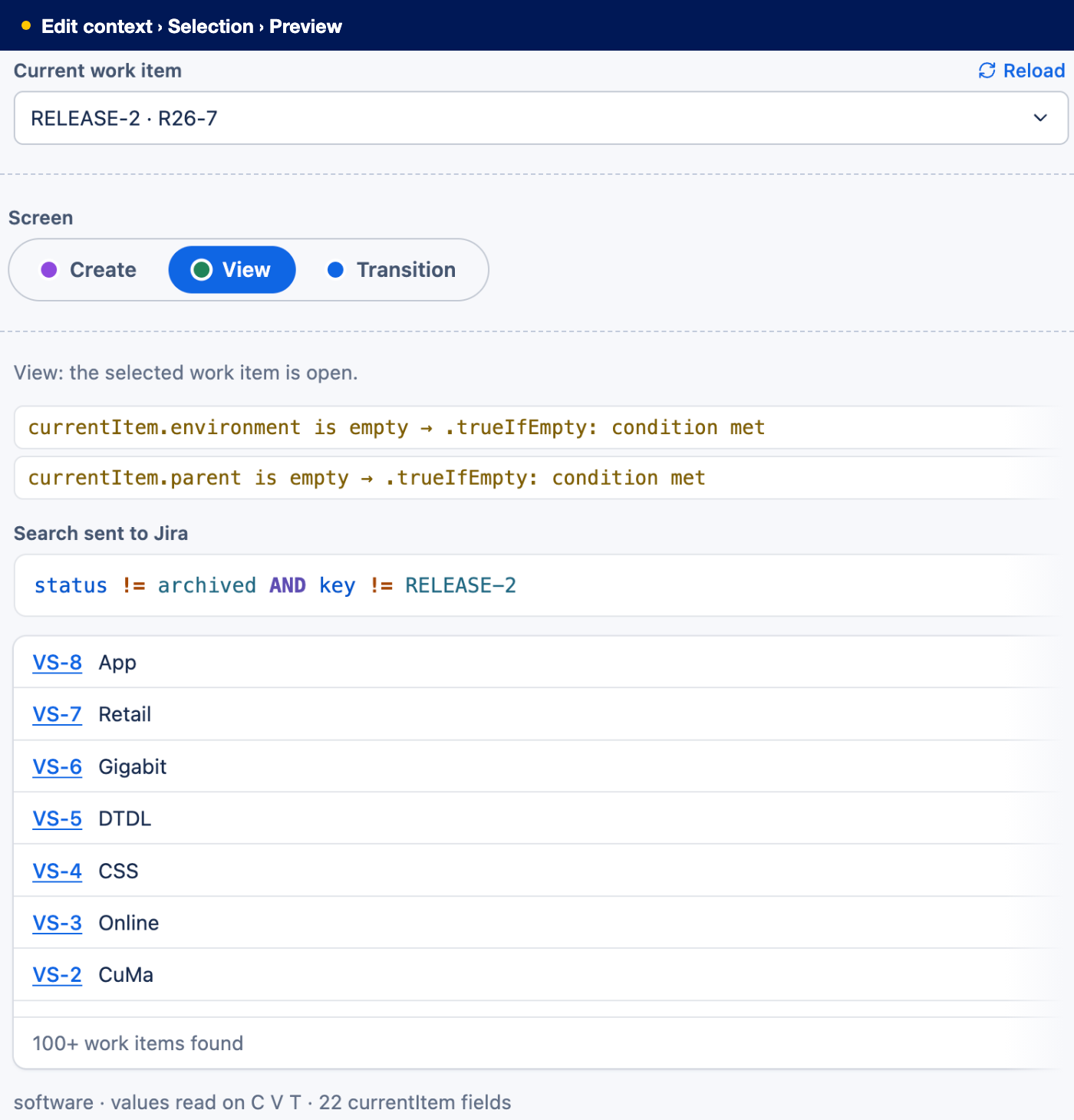
- Choose the Screen, then a Current work item (View, Transition) or a Space · Work type (Create, Portal create).
- The preview explains each value, e.g. “currentItem.environment is empty → .trueIfEmpty: condition met”.
- Search sent to Jira shows the resulting JQL, followed by the work items it finds. If the filter evaluates to false, it shows “(no search: the selection filter evaluates to false)” and the picker offers nothing there.